
eCommerce Content Marketing – 7 Strategies with Examples For Better ROI

In today’s digital age, eCommerce has become a significant player in the retail industry, and this impact is only going to grow.
But with this comes a heightened level of competition, making it increasingly challenging for eCommerce businesses to stand out from competitors and reach their target audience.
This is exactly where eCommerce content marketing comes into the picture.
If you want to ace the eCommerce game in 2023, you must understand and learn to leverage the power of content marketing to your advantage.
While it’s definitely tough to create effective content that resonates with your target audience consistently, it is the need of the hour. This is because content marketing (when done right) can help establish profitable long-term relationships and win more customers.
To help you achieve all of this and more, we’re going to share with you a list of ten eCommerce content marketing strategies and illustrate their effect using real-life examples.
What is eCommerce Content Marketing?
Content marketing for eCommerce is a powerful tool that helps to build brand awareness, engage with potential customers, and drive sales by creating content that resonates with them.
Compared to other marketing channels like running PPC campaigns or working with influencers, content marketing is cheap because it relies heavily on organic marketing channels such as SEO, social media marketing, email marketing, and so on.
Using content marketing, eCommerce brands can craft compelling stories that connect with their target audience and encourage them to take action.
Whether through blog posts, email newsletters, or any other tactics, the right eCommerce content strategy can help businesses to stand out in a fiercely competitive market, and build long-term relationships with their customers.
Why is Content Marketing Important for eCommerce?
Here are a few reasons why content marketing is important for eCommerce:
Building Brand Awareness
In today’s digital age, there are numerous eCommerce businesses competing for customers’ attention. Content marketing can help eCommerce companies stand out from the competition by creating valuable, informative, and engaging content that resonates with their target audience.
When you create and promote high-quality content, not only can you establish your brand’s identity but also increase its visibility, which makes it easier for your target customers to find you.
Establishing Authority and Trust
Customers are more likely to buy from brands they trust and perceive as experts in their industry. Content marketing can help eCommerce companies establish their authority and build trust with their target audience by creating content that addresses their pain points, answers their questions, and provides valuable information.
By consistently delivering high-quality content, eCommerce businesses can establish themselves as a trusted source of information and increase the likelihood of customers making a purchase.
Driving Sales
Ultimately, the goal of eCommerce content marketing is to drive sales and revenue. Content marketing can help to achieve this goal by creating content that promotes their products and services, and educates customers about their benefits.
So, as an eCommerce brand, you must invest in content marketing to create a strong connection between your products and your target audience’s needs. By doing so, you can definitely increase their sales and revenue.
7 eCommerce Content Marketing Strategies (+Examples) to Implement in 2023
Now that you’ve learned what content marketing is for eCommerce businesses, let’s discuss the top seven strategies with examples that you should consider implementing in 2023.
1. Personalised Blog
Whether your store is hosted on Magento or Shopify, a personalised blog is a must-have for eCommerce brands. It allows you to create content that speaks directly to your potential customers, which can help in building brand awareness and loyalty, and increase engagement.
As an eCommerce brand, if you want to leverage a personalised blog to your advantage, you need to start creating content that is tailored to your specific target audience.
That means you need to create a separate piece of content for first-time buyers, returning customers, and people who abandoned their shopping carts midway through the checkout process.
By doing so, you can establish strong relationships with your target customers and encourage them to keep coming back for future purchases.
The Iconic, an online fashion and beauty retailer based in Australia, is a perfect example of this. They have a personalised blog that regularly features personalised content for their customers.

On their blog, they regularly publish articles that are tailored to various customer needs & interests. By providing such personalised content, The Iconic is successful in being able to connect with their target customers and offer valuable advice & insights on fashion and beauty.
2. Buying Guides
Creating buying guides is a great way to provide value to your potential customers while also promoting your products.
By creating guides, you can showcase your products in action, which can help your target customers make informed purchasing decisions.
To get the best out of buying guides, make sure to create guides that are specific to different customer needs.
For example, an outdoor recreation retailer brand named REI has a separate buying guide section where they feature comprehensive guides for various outdoor activities like cycling, hiking, camping, etc.
Through these guides, REI successfully showcases its products while providing thoughtful, original, and valuable information to its target customers.
3. SEO
Search engine optimisation (SEO) is extremely crucial for any eCommerce business that wants to increase organic traffic to its website and generate sales.
By optimising your website for search engines, eCommerce brands can ensure their content is easily discoverable by their target audience.
To get your eCommerce website’s SEO on point, it’s critical to optimise the following elements:
- Site architecture
- Site speed
- On-page optimisation (i.e. title tags, meta descriptions, SEO-optimised images, product descriptions, etc.)
- Create blog content with relevant keywords
- Mobile-friendliness
- Backlinks
- And more…
By optimising these critical SEO elements, you can drastically improve their search engine rankings for target keywords, increase organic traffic to your website, and drive more sales.
Let’s take Kogan.com as an example to understand how SEO can help to succeed an eCommerce website.
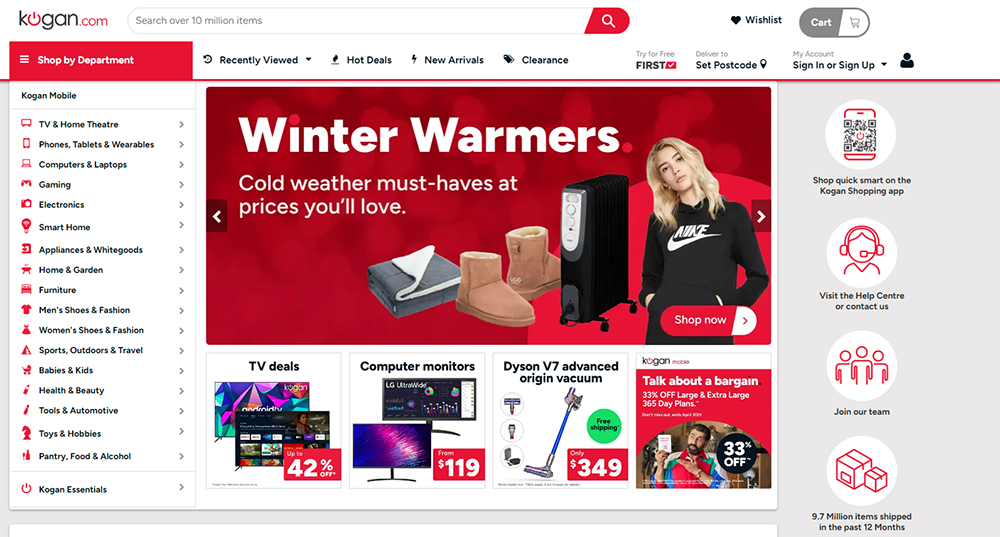
Kogan.com is a well-established eCommerce company that has optimised its website for SEO by implementing good site navigation, optimising its product pages with relevant keywords, and has a blog that provides informational content while also including internal links to its product pages.
All of these have greatly contributed to their overall search engine rankings, leading to increased website traffic and more sales.
4. Social Media Marketing
Social media marketing is another powerful tool for eCommerce businesses to increase brand awareness and boost sales on their website.
By posting engaging content on relevant social media platforms, you can expand your reach, connect with your potential buyers, and encourage them to buy your products.
However, if you want to succeed at social media marketing as an eCommerce brand, you must learn to find ways to connect your products with your target audience’s pain points and leverage user-generated content showing your products in action.
To learn how to utilise social media effectively, we highly recommend looking at Showpo’s Instagram account. Showpo has gained over 1.8 million followers on Instagram by featuring user-generated content, lifestyle images, and product promotions.
Apart from this, Showpo also showcases new products and behind-the-scenes content using Instagram Stories, which has helped the brand increase engagement with its followers.
The point is that by implementing a strong social media strategy that resonates with your followers and target audience, you can successfully gain a huge following on social media and attract new customers to your eCommerce website.
5. Email Marketing
Email is still one of the most effective ways to reach people and it’s true for eCommerce brands as well. For the uninitiated, email marketing is a tried and tested technique to reach out to potential as well as existing customers.
In fact, research shows that every dollar spent on email can generate $36 ROI on average.
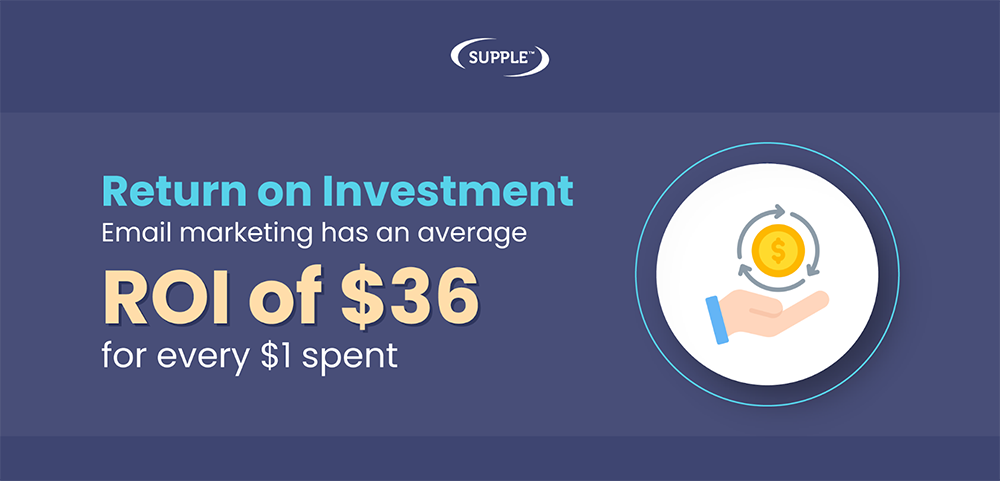
However, to achieve success with email marketing, eCommerce businesses must create engaging and personalised content that resonates with their audience.
One effective way to do this is by segmenting your email list based on demographics, behaviour, and preferences.
Let’s assume that you sell clothing on your eCommerce website in Sydney. In this case, you could segment your email list based on gender, age, and style preferences. This will allow you to send targeted emails with personalised recommendations and promotions.
Alternatively, you can also consider running targeted email campaigns, showcasing new products or offering exclusive discount offers to encourage your potential customers to make a purchase.
Glossier, for example, regularly runs email marketing campaigns to promote its new products and offers. They even send personalised emails based on each customer’s preferences and purchase history, which has proven to generate outstanding sales as a result.
6. Infographics
In the fast-paced digital world where customers have a short attention span, infographics can help to convey complex information and data in a visually engaging and easy-to-understand format.
By using a combination of images, charts, and graphs, infographics can be used by eCommerce companies to educate their customers on a variety of topics related to their products or services.
For example, an eCommerce company that sells healthcare supplements can create an infographic that illustrates the benefits of different types of supplements.
The infographic can be designed with attractive colours, clear images, and easy-to-read fonts, making it an engaging and informative resource for customers. More importantly, they can seek help from reputed nutritionists, and doctors to meet the E-E-A-T criteria.
By doing so, the company can establish itself as a credible source of information in the industry, which can lead to increased sales.
Overall, infographics are undoubtedly a highly effective content marketing tool for eCommerce companies that want to educate their customers, promote their products or services, and increase customer engagement and sales.
7. Video Content
Last but not least, video content is a highly effective and engaging way for eCommerce companies to promote their products and services.
By creating videos that demonstrate the features and benefits of their products, eCommerce companies can provide a clear understanding of what their products offer and how they can benefit their customers.
Apart from this, videos can also be used to educate customers about a specific product or industry, creating a sense of trust and loyalty with the audience.
For example, an eCommerce company that sells beauty products can create a video tutorial that demonstrates how to apply makeup using their products. By showing how their products can be used to create a specific look, the company can increase the likelihood of customers making a purchase.
Not only that but such videos can also be shared on social media platforms, such as YouTube and Instagram, where it can be seen by a wide audience, potentially leading to increased traffic & sales.
Boost your eCommerce ROI with Content Marketing!
As you have just learned, eCommerce content marketing is a powerful tool and can help businesses increase their online presence, engage with customers, and drive sales.
With so many eCommerce content marketing strategies available, businesses have the opportunity to experiment and find the strategies that work best for them. Ultimately, a successful eCommerce content marketing strategy requires a commitment to delivering value and building relationships with customers.
But one thing is for sure — content marketing will remain a critical component of eCommerce marketing efforts, providing an avenue for connecting with customers and driving business growth.
FAQs
What is eCommerce content?
E-commerce content refers to any written or visual material used to promote, advertise, or sell products online. This can include images, blogs, customer reviews, email newsletters, and social media posts to name a few.
How do you write eCommerce content?
To write effective eCommerce content, you need to identify your target audience, tailor your content according to their needs and preferences, and use persuasive language that encourages them to make a purchase.
What are the 4 P's of marketing in eCommerce?
The 4Ps of marketing in eCommerce, which is also known as marketing mix, are 1) Product 2) Price 3) Place 4) Promotion.
What are examples of online content marketing?
Online content marketing can have various strategies that businesses can use to attract and engage their target customers. Examples of online content marketing can include blog posts, videos, social media posts, webinars, ebooks, and email marketing.
What are the 4 Ps of Shopify?
The 4 Ps of Shopify are the same as the traditional marketing mix that includes product, price, place, and promotion.
What are the 7 steps of content marketing?
The 7 steps of content marketing are: define the target audience, establish goals, develop a content strategy, create high-quality content, publish and distribute, measure and analyse, and finally, evaluate performance and optimise the strategy accordingly.

-
Hardy
Hardy is the visionary founder of Supple Digital, a boutique SEO agency based in Melbourne, Australia. With a profound understanding of the digital landscape and a deep passion for innovation, Hardy has steered Supple Digital to become a leading name in the SEO domain.



DIGITAL MARKETING FOR ALL OF AUSTRALIA

- SEO AgencyMelbourne

- SEO AgencySydney

- SEO AgencyBrisbane

- SEO AgencyAdelaide

- SEO AgencyPerth

- SEO AgencyCanberra

- SEO AgencyHobart

- SEO AgencyDarwin

- SEO AgencyGold Coast

- We work with all businesses across Australia


